Create & Manage
-
AI Document Creation
Create polished, ready-to-send documents with AI in seconds
-
AI Data Extraction
Extract key information from documents quickly and accurately
-
Drag & Drop Agreement Builder
Build professional agreements quickly with an intuitive drag-and-drop editor
-
Custom Branding & Themes
Customize agreements with your brand, colors, logos, and themes
-
Content Locking
Lock approved content to prevent unwanted edits or changes
Send & Automate
-
Signing Order Workflow
Set the signing sequence and keep every agreement moving
-
Signature Request
Send secure signature requests and collect approvals with ease
-
Document Workflow Automations
Automate repetitive document tasks and keep workflows moving
-
Bulk Send
Send documents to multiple recipients at once and save valuable time
-
Collect Payment
Collect payments directly from agreements for a faster process
Manage & Track
-
Audit Trail & Version History
Track every document change, action, and version in one place
-
Team Workspace Collaboration
Collaborate on agreements with your team from one shared workspace
-
Search & Filter Agreements
Find the right agreement instantly with smart search and filters
-
Agreement Activity Tracking
See who opened, viewed, signed, or updated every agreement
By Business Need
-
Sales Agreements
Close deals faster with streamlined sales agreements and digital signatures
-
HR Documents
Simplify employee documents, onboarding forms, and HR workflows
-
Legal Agreements
Create, manage, and sign legal agreements with confidence and ease
-
Vendor Agreements
Manage vendor contracts, approvals, and signatures in one simple workflow.
By Industry
-
Healthcare
Simplify healthcare agreements, approvals, and signatures with secure digital workflows
-
Real Estate
Move property deals forward with faster agreements, approvals, and digital signatures
-
Financial Services
Streamline financial agreements, approvals, and signatures with secure digital workflows
-
Insurance
Simplify insurance documents, approvals, and signatures with faster digital workflows
By Business Type
-
Small Business
Simplify agreements and signatures with easy workflows built for growing businesses
-
Startups
Move faster with flexible agreement workflows designed for growing startup teams
-
Enterprise
Scale agreement workflows with secure, efficient tools built for enterprise teams
-
Agencies
Manage client agreements, approvals, and signatures without slowing down your projects


test
frdrfr

A smart form should reduce unnecessary effort without sacrificing the information your team needs. With average web form abandonment at 67.9%, the biggest opportunity is usually not adding more features, but deciding which questions belong in each respondent's path.
That benchmark changes how marketers should think about form optimization. A form can be technically polished, visually branded, and connected to a CRM, yet still lose roughly two out of every three people who begin it. The problem often sits between friction and relevance. Every extra field asks for more effort, while every poorly matched question makes the experience feel less useful.
Smart forms address both problems by adapting the journey. Conditional logic can hide irrelevant questions, autosave can protect partial progress, AI can help draft or personalize fields, and responsive layouts can make completion easier on smaller screens. The right combination depends on where people quit and what data the business needs.
This guide uses that behavior as a decision framework. You'll learn how to decide which fields to keep, when to branch, and when AI assistance is appropriate. You'll also see why mobile delivery, integrations, multilingual support, and spam protection must be judged by their effect on completion and data quality, not by feature count.
Table of Contents
What Smart Forms Solve in 2026
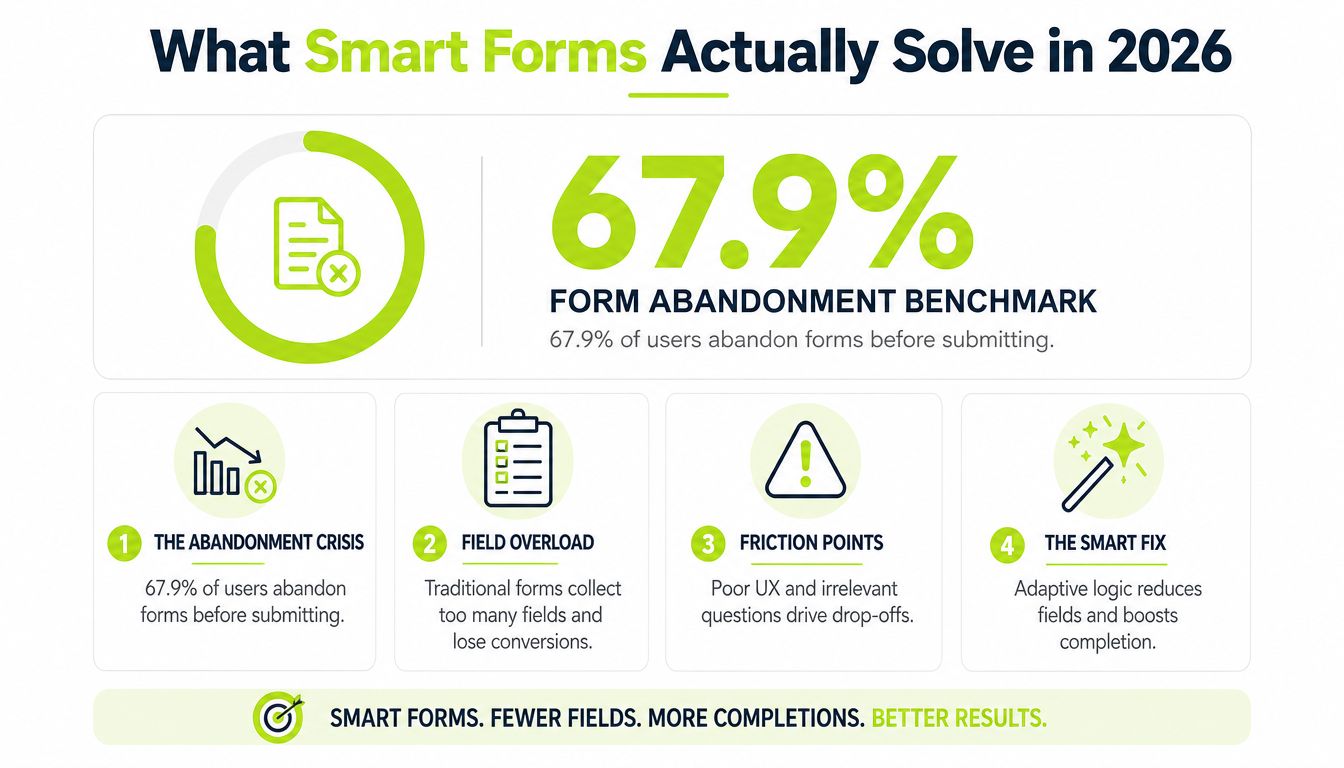
The 67.9% average abandonment benchmark gives marketers a useful starting point for understanding form performance, as reported in the web form abandonment benchmark. Because benchmarks define abandonment differently, treat the figure as a starting point rather than a universal target. A form start signals interest, not a likely submission.
Traditional forms often give every visitor the same questions. A new prospect, existing customer, small business owner, and enterprise buyer may see identical fields despite having different goals and levels of context. A long form can collect useful information, yet it also makes respondents spend time on answers your team may never use.
Friction and relevance are separate problems
A practical model separates four questions:
Friction: How difficult, lengthy, or uncertain is the task?
Relevance: Does each question fit this respondent?
Trust: Does the form explain why it requests sensitive information?
Continuity: Can the respondent recover after a reload or interrupted session?
A smart form addresses these problems selectively. Conditional logic can improve relevance, but unclear branches create new uncertainty. Autosave protects continuity, yet it cannot make an unnecessarily long form feel short. AI can suggest useful questions or wording, but generated content still needs human review and a clear business purpose.
Use conversion optimization best practices as a way to examine the respondent's journey, not as a checklist of interface features. Start with the conversion goal, identify where people hesitate or leave, then change the smallest part of the experience that addresses that behavior. The right form is the one that improves completion and preserves usable data, not the one with the largest feature set.
The practical definition
A smart form changes its questions, validation, presentation, or workflow according to respondent input and business rules. It might show a different section after someone selects “enterprise,” prefill known details, validate an entry before submission, save progress, or route the record to the appropriate system.
Consider a 12-field event registration form. A returning visitor may already have a name, email address, and organization stored in the session or linked account. The form can present five relevant fields while sending hidden or prefilled values to the downstream record. The respondent completes a shorter path, and the organizer still receives the information needed for attendance, segmentation, and follow-up.
That is the practical role of Kiwiform and smart form design generally. The objective is not fewer questions for their own sake. It is a better decision about which person sees which question, at which point, and for what reason.
The Core Anatomy of a High-Converting Smart Form
A smart form works as a system, not as a single conditional-logic feature. Each layer should address a specific reason people hesitate, leave, or submit incomplete information.
Six layers to inspect
Field architecture determines how much effort each answer requires. Use an email field for an email, a date selector for a date, and clear validation for formats that commonly fail. A poorly chosen input type turns a simple answer into manual work.
Conditional logic controls relevance. Show an implementation question only after a respondent indicates that implementation support matters. If a branch skips a field, record it as not applicable, rather than leaving it indistinguishable from a missing answer. Guidance on skip logic and survey branching emphasizes the importance of defined destinations and clean downstream reporting.
Progress and feedback signals reduce uncertainty. A progress indicator can show how much remains, inline validation can catch an error before the final step, and autosave can preserve a partial response. These features matter most when the form involves several decisions or sensitive information.
AI assistance can draft fields, identify likely intent, or help populate known details. It should support the form strategy, not invent the strategy. A generated question that doesn't map to a sales, service, compliance, or research decision is still unnecessary friction.
Delivery surface includes the responsive layout, embedded experience, shared link, QR entry point, or conversational presentation. The same form can feel simple in a desktop embed and awkward on a phone if controls are too small or the page requires excessive scrolling.
Downstream pipeline connects the submission to a spreadsheet, CRM, webhook, notification, or workflow. Data that arrives with inconsistent names, missing branch context, or duplicate records creates operational friction after the respondent has already completed the form.
| Component | Drop-Off Cause It Targets | Expected Impact |
|---|---|---|
| Field architecture | Difficult inputs and unclear requirements | Lower effort and cleaner answers |
| Conditional logic | Irrelevant questions | More relevant respondent paths |
| Progress and feedback | Uncertainty and recoverable errors | Greater confidence during completion |
| AI assistance | Repetitive entry and weak question design | Faster setup and selective personalization |
| Delivery surface | Poor mobile or embedded experience | Easier access across channels |
| Downstream pipeline | Manual follow-up and inconsistent records | Faster routing and better data usability |
The same principle applies to the page around the form. A focused landing page can make the offer, proof, and next action clearer, so marketers often pair form improvements with guidance on how to boost conversions with landing pages.
Design rule: Every field should have a named decision behind it. If nobody uses the answer, don't make the respondent provide it.
Building Your First Smart Form Step by Step
Use a B2B SaaS free-trial form as the working example. The objective is to create a qualified trial request, not to build a complete customer profile before the first conversation.
Start by writing one conversion goal and a minimum viable field list before opening the builder. Email may be essential for account creation, while company size or use case may help route follow-up. A field such as “annual technology budget” may be useful later, but asking it before establishing value can make the first interaction feel like an interrogation.

Build the path, not just the page
Choose the first input carefully. Start with a low-effort question such as work email, then ask for the information needed to personalize the trial. Group progressive-profiling questions behind a later branch instead of displaying every field immediately.
Create meaningful paths. If company size indicates an SMB path, ask about the team's immediate use case. If the respondent selects enterprise, ask about departments, permissions, or implementation needs. Keep the destination of every branch obvious. Over-branching creates a maze, especially when several rules depend on one another.
Protect unfinished work. Enable autosave and provide a resume link where the workflow supports it. A page reload shouldn't erase a thoughtful response, but autosave shouldn't be used as an excuse to make the form longer.
Validate in context. Show an email-format error beside the email field, using friendly language that tells the respondent how to fix it. Avoid vague messages such as “invalid input” when the form can explain the requirement.
Map every output. Send the submission to a Google Sheet for operational visibility and to HubSpot through Zapier for lead handling. Check that branch answers, hidden values, campaign parameters, and consent fields map to the intended destinations.
Test the actual entry surfaces. Preview the form on a phone, try the embedded version, and scan a QR variant if the trial is promoted at an event. Test each branch, not only the default path.
A useful test record includes the respondent's selected company size, displayed questions, validation messages, saved values, and final CRM properties. If those records don't agree, the form may appear to work while damaging segmentation.
The builder preview should come before launch, but the first real submissions deserve the same attention. Watch for unexpected blank values, duplicate contacts, branch paths that end without a submit action, and questions that appear after a respondent has already supplied the answer elsewhere.
The video below provides a visual reference for working with a conditional form-building flow.
Cutting Fields vs Branching Logic vs AI
Marketers often ask whether they should shorten a form, add conditional logic, or use AI to personalize it. The verified data doesn't support invented lift estimates for each tactic, so the safest decision rule is behavioral: identify the point where effort becomes irrelevant, then choose the least complex fix.
Remove fields when the answer has no immediate job
Cut a field when the team can't explain what it will do after submission. Removing a question simplifies the experience for everyone and avoids creating a data point that sales, support, or operations won't use.
The trade-off is data depth. If you remove a use-case question, you may lose an early signal that helps personalize follow-up. That can be acceptable when the form's primary purpose is a low-friction first conversion. It isn't acceptable when the field is required for eligibility, routing, safety, or fulfillment.
Branch when different people need different questions
Use branching when the answer to an early question changes what the respondent needs to provide. Company size is a strong example. An SMB path may focus on immediate workflow needs, while an enterprise path may need implementation ownership, security review, or user provisioning details.
Branching preserves useful depth without presenting every question to everyone. It also creates a maintenance burden. Each path needs testing, analytics, copy review, and a clear treatment for skipped fields. If the paths differ only cosmetically, a branch adds complexity without improving relevance.
Use AI when the form has justified complexity
AI is most defensible when a long form contains information that can be suggested from an existing answer, a document, a domain, or a structured prompt. It can help generate a first draft or reduce repetitive entry, but it needs safeguards for privacy, latency, inconsistent output, and incorrect inferences.
| Strategy | Best For | Average Lift | Setup Effort | Data Quality Impact |
|---|---|---|---|---|
| Cut fields | Unused or optional questions | Not established in the verified data | Low | Less depth, potentially cleaner records |
| Branching | Distinct respondent needs | Not established in the verified data | Medium | More relevant answers, more paths to govern |
| AI assistance | Repetitive or complex entry | Not established in the verified data | Medium to high | Faster capture, requires review and validation |
For a 12-field B2B demo request, start by asking whether all 12 answers are needed before a salesperson responds. If team size determines the useful questions, branch there. If later enterprise fields require repetitive information, consider carefully controlled suggestions or autofill, with the respondent able to correct every value.
Reversible choice: Change one decision point at a time, preserve the original version, and compare path-level behavior rather than judging the form by its overall submission count alone.
If you need to compare builders that support more adaptive workflows, review the Jotform alternative in the context of your logic, integration, and response requirements. The platform choice matters less than whether the chosen tool lets your team inspect and revise the actual respondent path.
Integrations, Mobile Scanning, and Multilingual Delivery
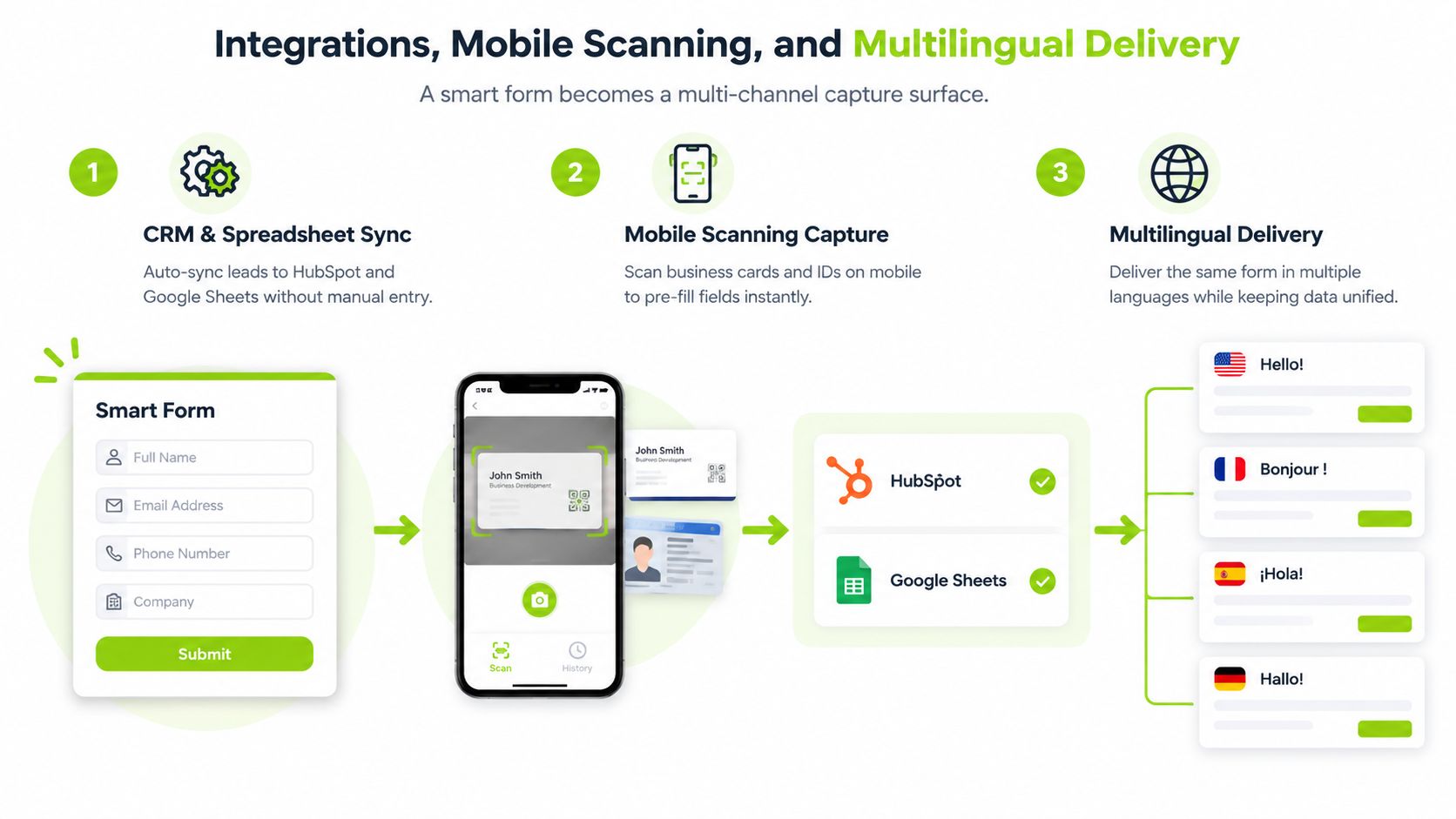
A smart form becomes more useful when it operates across the places where people already interact with a business. The challenge is keeping the record consistent when the entry point changes from a website embed to a QR code, CRM handoff, or translated experience.
Connect the form to the operating system
A CRM or spreadsheet integration should receive clearly named fields, stable values, and the context needed to understand the submission. Use a native connector or webhook where appropriate, then verify that the destination receives the same branch information the respondent saw.
For campaign analysis, preserve source fields such as UTM values and channel identifiers. Dedupe with a practical identity rule, such as email plus campaign context, while recognizing that the exact rule depends on your data model. A conference scan and a website submission from the same person may represent different interactions, not an error.
Treat QR codes as context carriers
A QR code should do more than open a generic form. At a conference booth, it can open an event-specific version with session metadata already attached. A useful attendance flow is:
Scan the code.
Attach the session or event identifier.
Offer an optional name lookup or short identity step.
Submit the attendance record.
That sequence reduces typing and gives marketing a way to separate scan-originated leads from ordinary traffic. If the venue connection is unreliable, offline caching can queue submissions for later synchronization, but the user should see a clear confirmation that the response was saved locally.
Localize the experience, not just the labels
Multilingual delivery requires more than translating question text. The form should account for error messages, date formats, help text, confirmation copy, consent language, and the way responses are normalized for reporting. SurveyMonkey reports that one in five surveys includes at least one translation, and its state of surveys report also discusses the growth of skip logic and shorter, event-triggered feedback experiences.
Keep the underlying field names consistent across languages, even when the visible wording changes. This lets the CRM treat translated submissions as one dataset while preserving the respondent's language and original answer where needed.
For teams evaluating workflow compatibility, a Formstack alternative comparison can be useful when mobile embeds, logic, integrations, and multilingual requirements all matter. Evaluate the complete flow, not only the form editor.
Spam Protection Without Killing Completion
Spam controls create a direct trade-off. They can block automated submissions, but every challenge also asks legitimate visitors to complete another task. A CAPTCHA study examined task abandonment, while usability research on text-based CAPTCHAs found substantial first-attempt failure and abandonment. An industry synthesis citing Baymard reported a 32-second average completion time and first-attempt success rates as low as 66%, as summarized in the CAPTCHA usability research.
That doesn't make CAPTCHA universally wrong. It means the control should match the threat.
Use the least disruptive layer first
Honeypot fields: Add a field that normal users won't see but simple automated scripts may complete. Reject or quarantine suspicious records without interrupting ordinary respondents.
Rate limiting: Restrict repeated attempts by practical signals such as IP patterns, email domains, or session behavior. Review shared-office and VPN traffic carefully before blocking.
Invisible bot scoring: Use background signals to identify suspicious sessions, then reserve a visible challenge for records that cross your risk threshold.
Visible CAPTCHA: Present a challenge only when the value or risk of the submission justifies the added effort.
The right threshold depends on your normal traffic and false-positive tolerance. Review legitimate sessions that were flagged, especially those from shared networks, mobile carriers, or privacy tools. A security layer that blocks qualified applicants can cost more than the spam it prevents.
| Method | Completion Drop | Threat Addressed | Best For |
|---|---|---|---|
| Honeypot | Not established in the verified data | Basic automated submissions | Low-threat public forms |
| Rate limiting | Not established in the verified data | Repeated abuse and bursts | Lead and signup forms |
| Invisible scoring | Not established in the verified data | More adaptive automation | Gated content and account flows |
| Visible CAPTCHA | Can reduce completion | High-risk automated activity | Sensitive or high-value submissions |
A low-threat lead form may need only passive controls. A sensitive intake or high-value registration process can justify more friction, provided the team monitors completion and legitimate failure. Choose protection based on observed abuse, not fear of hypothetical attacks.
A Smart Form Audit You Can Run Today
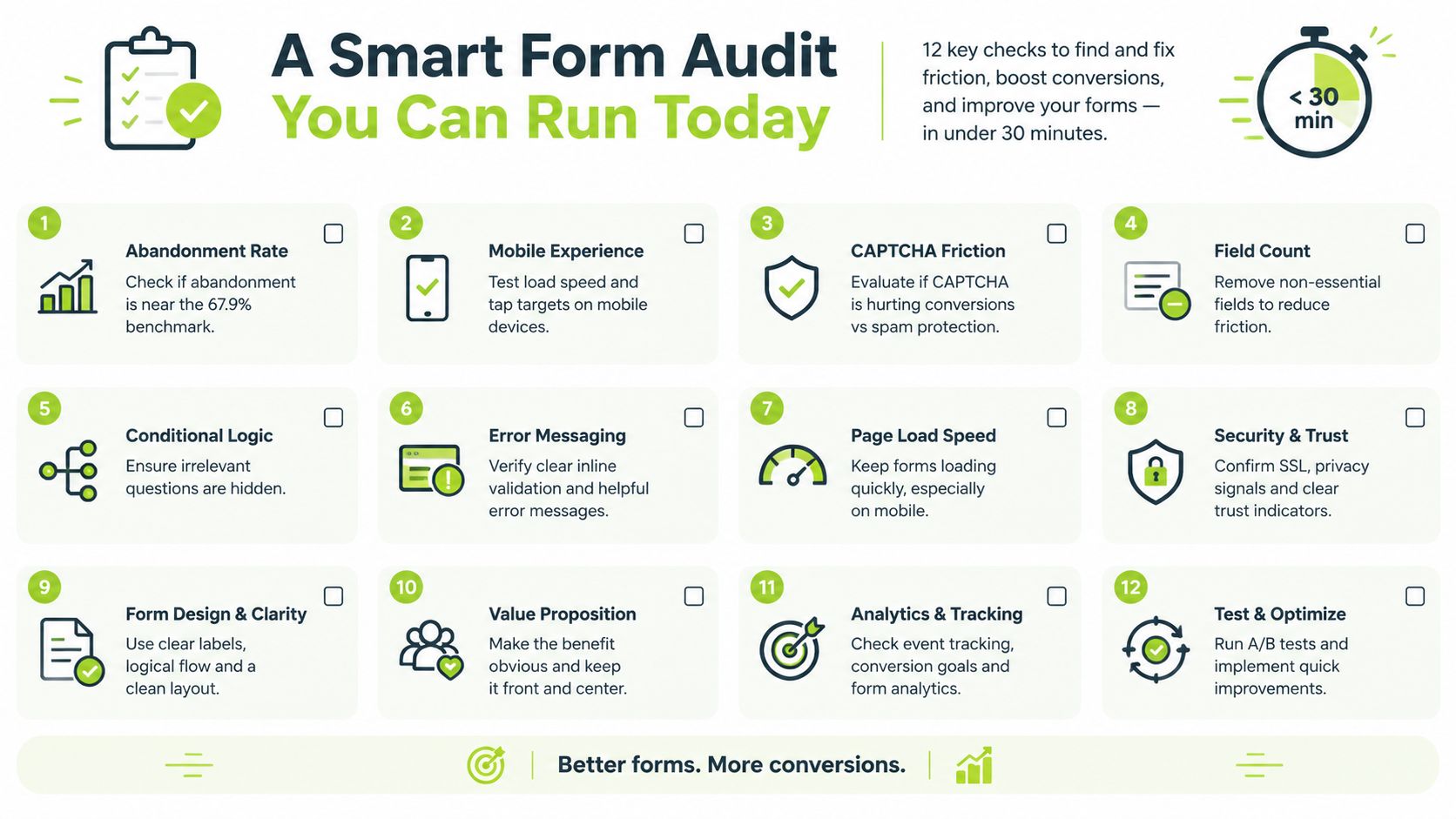
Start with observed completion behavior, then choose the smallest change that addresses the largest problem. The market context supports that focus: online forms were valued at approximately $3.1 billion in 2024 and are projected to reach $5.8 billion by 2033, implying a 7.2% CAGR from 2025 to 2033, according to the online forms market data. The same source reports that more than 60% of form submissions occur on mobile devices, so a desktop-only review can miss the experience causing drop-off.
The 12-point review
Abandonment baseline: Compare your form's abandonment with the 67.9% benchmark cited earlier. A higher result is a prompt to investigate, not proof that one field caused the loss.
Stage location: Find the first field or step where exits rise. If the pattern begins after a sensitive question, review trust, wording, and context before removing unrelated fields.
Mobile preview: Open the form on a phone. Test tap targets, keyboard behavior, scrolling, and error visibility.
Field order: Put the easiest meaningful question first. Respondents should not have to complete your internal qualification sequence before they understand the value.
Input type: Give each field its fastest suitable control, such as a date picker, email input, or compact choice list.
Logic path: Trace every answer through every branch. Confirm that each trigger reaches a valid destination and that no respondent reaches a dead end.
Skipped values: Store non-applicable fields separately from unanswered fields. Otherwise, the CRM may treat “not relevant” as missing data.
Progress signal: Show where respondents are and what remains, particularly in multi-step flows.
Autosave recovery: Reload the page or resume from a saved link. Confirm that legitimate progress survives.
Integration mapping: Submit test records and inspect Google Sheets, HubSpot, Zapier, or the receiving webhook for missing or misnamed properties.
Duplicate handling: Check whether repeated submissions create unusable duplicates or preserve meaningful repeat interactions.
Spam fit: Review blocked and quarantined records. Decide whether the current protection creates more friction than the observed threat warrants.
Rank each finding by conversion risk, data risk, and implementation effort. Repair a broken branch or missing CRM field before polishing button colors. The practical B2B SaaS audit framework can help place these findings alongside the rest of the conversion journey.
Run the 12-point audit on your highest-traffic form this week. If you want to test visual branching, autosave, responsive embeds, QR distribution, multilingual forms, and integrations with Google Sheets, HubSpot, Google Drive, or Zapier, Visit Kiwiform and compare a shorter or more adaptive path with your current flow.
Everything You Need to
Create, Send and Sign Documents
Agreed helps teams reduce delays, improve signing completion
Start Creating Now